• Log in

Menu

Backup Logos

Try BrandCrowd for Free! The World's #1 Backup Logo Maker.

Backup - Cloud Digital Computing
Backup - Digital Cloud Storage
Backup - Cloud Saas Technology
Backup - Sky Cloud Hosting
Filters
Logo Styles
null Icon
Color
null Icon
  1. Go to previous page
    null Icon
  2. Page 1 of 1
  3. 1
  4. Go to next page
    null Icon

1 - 61 of 61 backup logo designs

Make a backup logo online. Enter your business name and create a stunning backup logo tailored just for you. Try it free!

Making Your backup Logo Is Easy With BrandCrowd Logo Maker

Create a professional Backup logo in seconds with our free Backup logo maker. BrandCrowd logo maker is easy to use and allows you full customization to get the Backup logo you want!
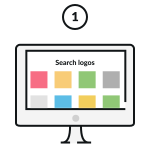
Pick A Backup Logo

Pick one of the Backup logos on this page or update your search.
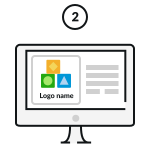
Customize Your Backup Logo

Change colours, fonts, add a tagline… Our Backup logo maker is 100% customizable and easy to use.
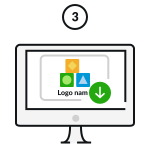
Download Your Backup Logo!

Download your Backup logo and start sharing it with the world!

Enter any keyword and we will start making logos for you

How do I make a Backup logo with BrandCrowd?

Creating your Backup logo easy with BrandCrowd. Just follow these steps and you'll have a Backup logo ready to share with the world in seconds.

Search-icon

1. Start searching:

To find Backup logos relevant to your business enter your business name - We'll automatically show you Backup logos related to your business. You can browse the logos and choose one you love.

Refine-search-icon

2. Refine your search:

If you can't find the perfect Backup logo, you can refine your search by entering related keywords. We'll show you more logos related to your search.

Logo-shortlist-icon

3. Create a Backup logo shortlist

To make life easier you can "shortlist" logos that you like. Simply click the heart symbol and we'll add the Backup logos to your shortlist.

Edit-logo-icon

4. Edit your Backup logo

Once you've found a Backup logo that you love, you can customize the logo colors, fonts and layout. You can even add more embellishments with shapes.

Edit-logo-icon

5. Preview your Backup logo

When you're done editing you can easily preview your logo on apparal, signage and more to see how it looks in real life.

Download-logo-icon

6. Download your Backup logo

Once you're done customizing, you can download your Backup logo - you'll get access to all the logo files you need, instantly

What elements make a beautiful logo?

It's easy to create a logo with BrandCrowd's logo maker - but making sure you get these design elements right will ensure your logo is perfect. Your logo should represent your brand, help people remember you and provide insight into your services. Choosing the right colors, layout, fonts and shapes are key to making sure your logo rises above competitors.

two-Backup-logo-examplestwo-Backup-logo-examples
Logo-type-icon

Logo type

There's an array of different logo types to choose from. Does your Backup logo need an icon or just text? Should it have a combination of both?

Find out more

Logo-colour-icon

Logo colors

Want to convey trustworthiness? Want to appear fun and outgoing? Choosing the right colors for your Backup logo makes all the difference.

Find out more

Logo-font

Logo font

In the same way colors can convey meaning, so too can fonts and typography. Need a serious Backup logo or maybe something more gentle? Make sure to choose your fonts wisely.

Find out more

Frequently asked questions

Creating that perfect backup logo with BrandCrowd is easy - but just in case, here's some FAQs to help you get started.

What is the BrandCrowd backup logo maker?

BrandCrowd's backup logo maker allows you to generate and customize stand-out backup logos in seconds. BrandCrowd gives you access to a professional library of thousands of customizable backup logo designs - making creating your backup logo inexpensive and straightforward. Our logos, created by designers around the globe, give you unlimited possibilities.

Do I get a transparent version of my backup logo?

Absolutely! A transparent version of your backup logo is provided when you download in a PNG format. Even if you've chosen a solid background for your backup logo, we'll provided a version of your logo with a transparent background for your convenience - perfect for use on your website.

What layout works best for backup logos?

You want your backup logo to standout above competitors. Your logo should tell your audience, customers, fans and competitors that you mean business. There's no single answer for what layout your backup logo should have - but keep in mind what message your want to convey with your logo. A simple layout can convey elegance and sophistication, while a more dynamic layout can mean fun or adventure. Search our logo collection for a design then customize it according to your needs. Remember you can also research backup logos - pay attention to their layout, color choices, design themes and fonts.

What text should I choose for my backup logo?

What's in a name? If you haven't already got a name for your backup logo then here's some tips. You want to use text and a name that describes your business, the caliber of service you provide and one that resonates with customers. If you're stumped, research other companies that use backup logos for some ideas. Remember your backup logo should have a catchy and non-offensive name that sits well with the whole team. Try to keep the logo text short and simple using a bold clean font, so it's easily recognisable on your backup logo.

How do I find the right backup logo?

Simply put, backup logos are visual representations of what your business is all about. The logo you choose will become synonymous with your brand, so it pays to choose wisely. BrandCrowd offers access to a library packed with backup logos created by professional designers from around the world. Find the perfect backup logos is as simple as searching the library, customizing the logo to your liking and downloading. Remember, keeping your backup logo simple with three or fewer colors and clean fonts produces an effective, eye-catching logo.

How do I add a tagline to my backup logo?

It's easy to enhance your backup logo with a tagline. A tagline is usually added at the bottom of your logo and consists of a short piece of text like a motto or catchphrase. Taglines that work include three to seven memorable words. Like an advertising jingle or popular song, this additional text on your backup logo helps further associate your design with your brand. You can add a tagline in a few clicks with BrandCrowd's free logo maker.

Can I download my backup logo instantly?

Yes. Now that you've created the perfect backup logo, it's time to put your design to work. BrandCrowd allows you to download your logo instantly and gives you access to all the files you need. BrandCrowd provides files perfect for producing business cards, marketing and print materials, for using on your website or blog and for branding those social media posts. All the logo files you need are available in your account.

Do I get my backup logo in vector format?

Of course. Your backup logo from BrandCrowd is provided in several formats including vector files (PDF and SVG). No matter how large you want your backup logo, it'll look great. Vector files are used to create print layouts and illustrations as they ensure the same quality appearance across all formats and sizes.